Save Snapchat Video Free: HD Guide (2026)
If you want to save Snapchat video clips before they vanish, you need to know one thing first: not every video on Snapchat can be saved the same way. Your own Snaps, a public Spotlight clip, a friend’s Story and a private snap sent straight to you are four completely different cases, and each one has its own right method — and its own hard limit. I spent this morning testing the whole range on snaptodown.com, and the results are refreshingly clear: a real public Spotlight link resolved to the original file in under two seconds, no login, no watermark, no app. A dead link, on the other hand, came back with Snapchat’s own 404 message. No tool can argue with that. This guide walks through every honest way to keep a Snapchat video, which one fits your situation, and where to stop.
How to Save Snapchat Video in 3 Steps
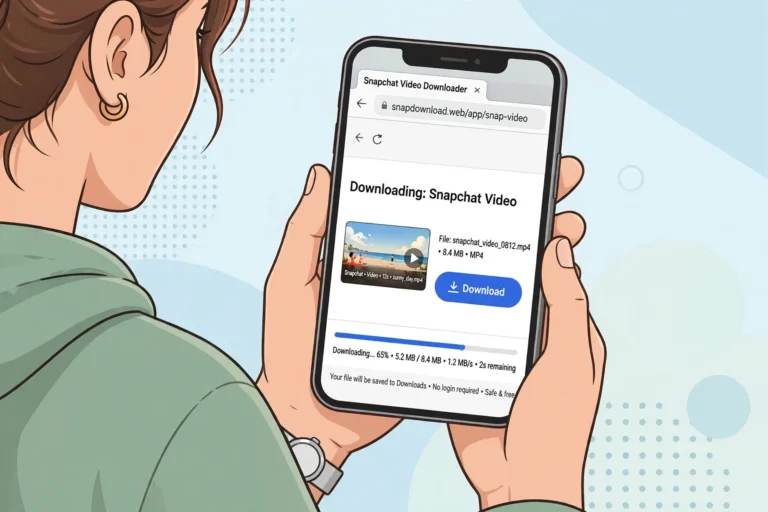
For a public video — a Spotlight clip or a public Story — the link method is the fastest route, and it is the one I tested first-hand today:
- Copy the link. In Snapchat, open the video, tap the share arrow, and choose Copy Link. On a computer, open the clip at snapchat.com and copy the address from the bar instead. The link usually looks like a short t.snapchat.com address or a full snapchat.com/spotlight/… address.
- Paste it into the downloader. Open snaptodown.com, paste the link into the box, and hit Download. There is nothing to install and nothing to sign into — the tool works from the public link alone.
- Save the MP4. The tool hands back the original file Snapchat serves: same quality, same sound, no watermark stamped over it. Save it, and it is yours to watch offline, archive, or edit from.
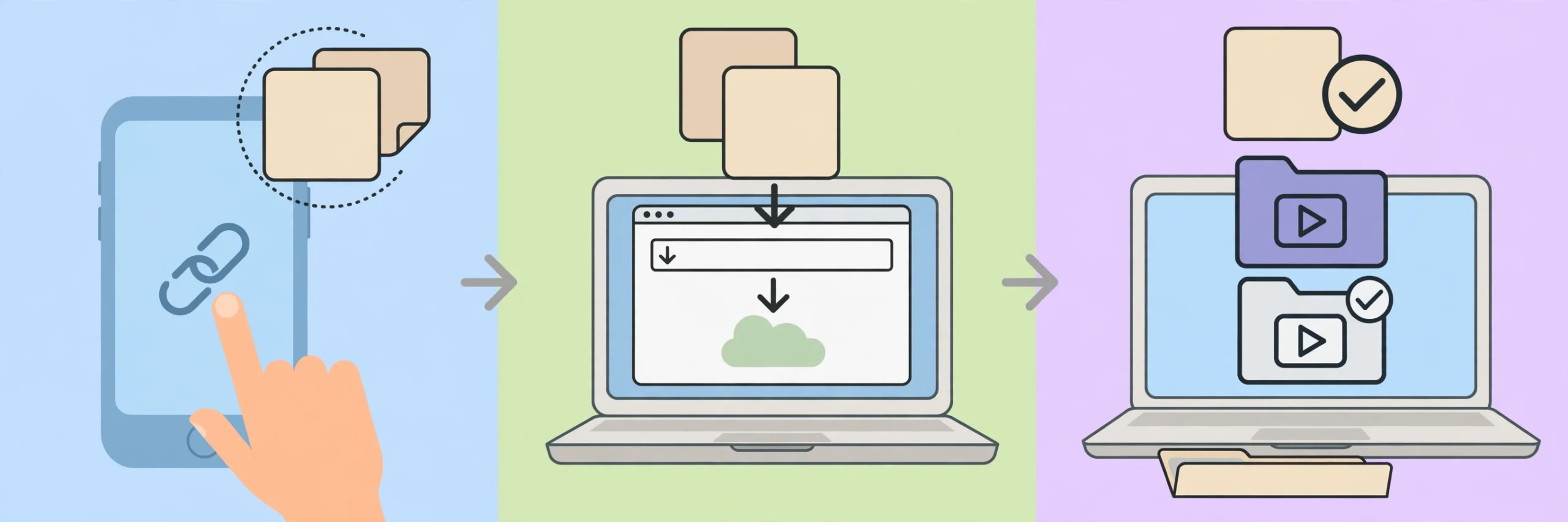
Watch it happen in real time — this is the actual snaptodown tool running a real public Spotlight link, from paste to download-ready:
The reason this works at all is that Spotlight and public Stories are public by design. Snapchat built Spotlight as an open discovery feed — there is no friends-only version of a Spotlight post — so a shareable link exists and the file behind it is reachable. That is the whole trick, and it is also the boundary: anything without a public link is out of reach, and I will come back to that below.
Your Own Videos: Start With Memories
If the video is yours, do not reach for a downloader at all. Snapchat’s own Memories feature is the official route, and it is the safest one you have. Before you send a Snap, tap the download arrow at the bottom-left of the preview screen and it saves to Memories automatically. For a Story you already posted, open it, tap the three-dot menu, and choose Save to Memories or Save to Camera Roll — the second option skips Memories entirely and puts the file straight on your phone.
To get a Memory onto your phone later, open Memories, long-press the Snap, and tap Export Snap, then Save to Camera Roll (iPhone) or the Gallery equivalent on Android. It takes a couple of seconds per video. One setting worth changing once and forgetting about: in Settings, under Memories, set the Save Button to Memories & Camera Roll. From then on, every Snap you choose to save lands in both places without a second thought.
Memories has one firm limit that trips people up: it only holds what you created. It will not save a video someone else sent you, and it cannot rescue a Snap that has already expired in a chat. For your own archive, though, it is also backed up to Snapchat’s servers when backup is switched on, so your saved Snaps survive a phone change — something a file sitting only in your gallery cannot promise.
Save Snapchat Video on Any Device
The link method above works in any browser, but where the file lands afterwards depends on your device. Here is the part most guides gloss over, and it is the part that actually causes the “where did my video go?” panic.
On iPhone
Safari does not put a downloaded video straight into Photos. It lands in the Files app, in Downloads. Open Files, find the video, tap the Share icon, and choose Save Video — that is Apple’s own Share-sheet action, and it moves the clip into Photos immediately. If you use an in-app browser instead of Safari, the download may not behave at all, so open the downloader in Safari itself. For the full iPhone walkthrough, including the Files-app quirk with screenshots of each step, see our iPhone guide.

On Android
On Android, the file goes to Downloads or straight to the Gallery, depending on your browser. Chrome saves to Downloads by default; the video then appears in the Gallery or in Google Photos once the media scan picks it up. If you cannot find it, open the Files app and check Downloads first — it is almost always there. The Android guide covers Chrome, Samsung Internet and the Files-app route in detail: Android guide.
One Android-only warning: if you run a cleaner app, check that it is not set to auto-delete Downloads. A downloaded video is easy to lose to an over-eager cleanup, and the link may have expired by the time you notice.
On PC or Mac
On a computer, the same method is simplest of all. Paste the link in your browser, download the MP4, and it lands in your usual Downloads folder. From there you can rename it, move it to an archive folder, or drop it into a video editor. Nothing extra is required: no emulator, no phone, no extension.
Link Downloader vs Memories vs Screen Recording
Which route should you pick? This table sums up the honest trade-offs:
| Method | Best for | File quality | Catch |
|---|---|---|---|
| Link downloader | Public Spotlight and public Stories | Original, as served by Snapchat | Needs a public link; nothing private |
| Memories | Your own Snaps and Stories | Original | Only your own content; no rescue after expiry |
| Screen recording | Last-resort capture of anything on screen | Re-encoded, lower quality | Plays in real time, includes notifications |
Screen recording deserves a note because it is often sold as a workaround. It works, in the sense that it captures whatever plays, but the result is a re-encoded copy: softer, larger, and with the risk of a notification popping up mid-capture. Use it when no other method applies, not as a first choice.
What You Cannot Save — and Why That Is Not a Bug
Some videos simply cannot be saved, and that is by design rather than a limitation of the tool. The list is short but firm:
- Private Snaps sent to you in a chat or as a direct message. There is no public link, and no downloader can create one.
- Videos from a private Story or a friends-only account. The link is not public, so the file is not reachable from outside Snapchat.
- Expired Snaps and Stories. Once the timer runs out, the content is deleted from Snapchat’s servers — and from your screen.
- Snaps you have already viewed and closed in a chat set to delete after viewing. The file is gone by design.
Two warnings follow from that. First, any site that promises to save a private snap is either lying or asking you to hand over your login — do neither. Second, if a link returns Snapchat’s own “This content is unavailable” or 404 page, the video is not coming back through a different tool. It is gone at the source.
Spotlight, Stories, and the 24-Hour Clock
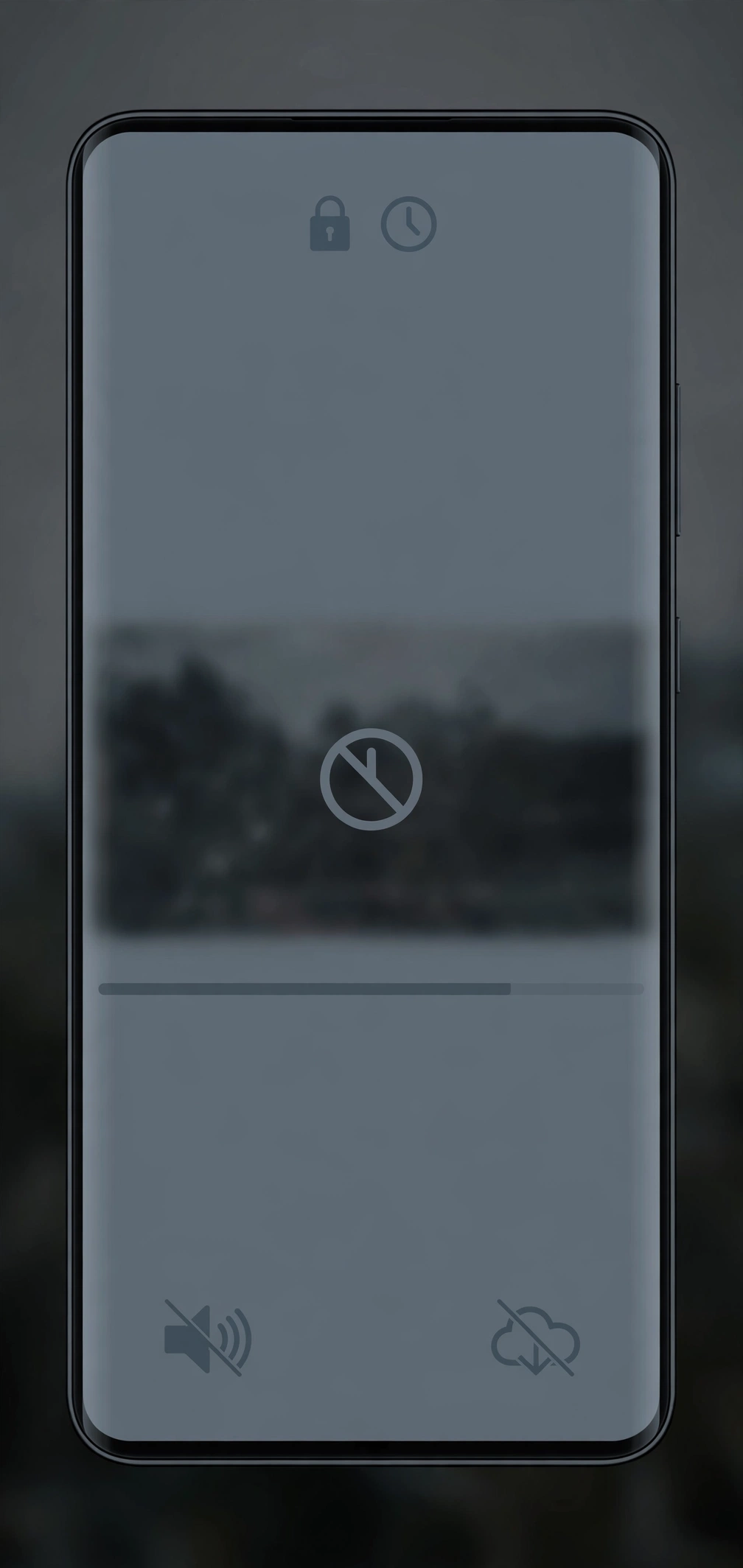
Spotlight and Stories obey different clocks, and mixing them up causes most of the confusion. A Story disappears 24 hours after posting, and so does its public link. A Spotlight clip, by contrast, stays live until the creator removes it or Snapchat takes it down — there is no 24-hour expiry built in. That urgency is also why a dedicated story downloader and a dedicated Spotlight downloader exist as separate guides: the steps are the same, but the window you have to act in is not.
The practical takeaway: if a Story video matters to you, save it the day it is posted. Do not assume you can come back to it tomorrow. For Spotlight, you have more breathing room, but a creator can still delete a clip at any time — saving promptly is still the safe move.
One more point that is often asked: does the person who posted the video get notified when you save a public clip through a link? The short answer is no — downloading a public Spotlight or Story link does not send a notification. That is different from screenshotting a private chat, where Snapchat does notify. The full distinction is covered in the post on whether Snapchat notifies you when you download a story.
Is It OK to Save Someone Else’s Video?
The short version: saving a video for your own private viewing is one thing; reposting it as if it were yours is another. Public Spotlight clips are shared with the world, but the creator still owns the copyright. Keeping a copy to watch later is generally fine. Uploading it to another platform, using it in your own content, or claiming it as your own is not — and it can get your account taken down. If you want to reuse a clip, ask the creator first. A quick message costs nothing and avoids the most common copyright strike on this platform.
There is also a privacy line that is worth drawing clearly. A video someone shared publicly is fair game for private saving. A video sent to you privately is not, even if you can capture it technically. Treat the boundary the way you would want your own private Snaps treated. The legal detail is covered in our legal guide.
Frequently Asked Questions
Can I save Snapchat video without the app?
Yes — open the public link in any browser, paste it into a browser downloader, and save the MP4. No app install and no Snapchat login are needed for public videos. For your own Snaps, use Memories instead.
Why does the download fail with “content unavailable”?
That message means the link is dead at the source: the Story expired, the creator deleted the clip, or the video was never public. No tool can recover it, because there is no file left to fetch. The troubleshooting guide walks through the other, fixable causes: a wrong link format, an in-app browser, or a browser blocking the download.
Can I save a private Snapchat video?
No — and any site that claims otherwise should be treated as a red flag. Private Snaps have no public link, so they cannot be downloaded. The only honest route is the one built into Snapchat: if it is your own Snap, save it from Memories before it expires.
Does saving a video reduce its quality?
Not with a link downloader, which returns the original file Snapchat serves. Screen recording does reduce quality, because it re-encodes the video while it plays.
Where does the video go on iPhone?
Safari saves to Files > Downloads, not directly to Photos. Open Files, find the MP4, tap Share, and choose Save Video to move it into Photos. The iPhone guide shows each step with screenshots.
Is there a way to save a Snapchat video after it expires?
No. Once a Snap or Story expires, Snapchat deletes it from its servers. Memories can only save what you created and saved before expiry, and no downloader can fetch a file that no longer exists.
Do I need to sign in to download?
No. Public links download without a Snapchat account, and the browser tool needs no login either. If a site asks you to sign in to Snapchat to “unlock” a download, stop — that is how accounts get compromised.
What format will the saved video be?
MP4, the format Snapchat serves for Spotlight and Story videos. It plays on iPhone, Android, Windows and Mac without conversion, and it edits cleanly in most video editors.
If you only remember one thing from this guide, make it this: match the method to the video. Your own content belongs in Memories, public links belong in a browser downloader, and private or expired content belongs in the past. Save what matters while the link is live, keep a copy you control, and do not hand your login to any site that promises what Snapchat itself will not allow. For the latest on how Snapchat handles disappearing content, see Snapchat Support.