Save Snapchat Story Free: HD Guide (2026)
Every Snapchat Story comes with a countdown. Twenty-four hours after you post it, it’s gone — unless you took thirty seconds to save Snapchat story clips while they were still live. I learned that the hard way once, losing a whole birthday Story because I assumed Snapchat kept a copy somewhere. It doesn’t. If you didn’t save it, or switch on auto-save before it expired, there is nothing left to recover. The good news: saving your own Story takes four taps, and saving a public Story from a creator you follow is just as quick with the right tool. Here’s every method that actually works in 2026, what each one can’t do, and the mistakes that cost people their Stories.
How to Save Snapchat Story: Your Own Story in 4 Taps
This is the method Snapchat itself built in, and it’s the one you should reach for first. It saves your whole Story as one video, exactly as your friends saw it.
- Open Snapchat and tap your Bitmoji or profile picture in the top-left corner to open your Profile.
- Find My Story near the top of your Profile.
- Tap the three dots next to My Story.
- Tap Save Story.
Snapchat stitches every snap currently on your Story into a single video and saves it to Memories. That’s it — no app to install, no export step, no quality loss, because it’s your own original file. One thing people get wrong: saving doesn’t extend your Story. Your friends still see it disappear after 24 hours. Only your saved copy in Memories stays.

Save Just One Snap Instead of the Whole Story
Sometimes you posted twelve snaps and only care about two of them. You don’t have to keep the whole reel:
- Go to your Profile and tap My Story to play it.
- Tap through until the snap you want is on screen, then tap it to pause on it.
- Tap the three dots.
- Choose Save (on some versions it says Save Snap).
That single snap goes to Memories on its own. This is also the fastest fix when you’ve posted a lot in one day and only a couple of moments are worth keeping — a goal, a reaction, one perfect sunset — rather than a five-minute compilation you’ll never rewatch.
Turn On Auto-Save So You Never Lose a Story Again
If you forget to save things — and honestly, most of us do — let Snapchat do it for you. With auto-save on, every snap you add to your Story is copied to Memories the moment you post it.
- Go to your Profile and tap the gear icon to open Settings.
- Tap Memories.
- Find the auto-save option (wording varies slightly by version — look for “Auto-Save My Story Snaps” or similar) and switch it on.
Two honest catches. First, auto-save only works going forward — it will not bring back a Story that already expired before you switched it on. Second, check your save destination in the same Memories settings screen. “Memories Only” keeps snaps inside Snapchat; “Memories & Camera Roll” also puts a copy in your phone’s gallery, which is what you want if your real goal is a backup outside the app. I switched mine on the day I lost that birthday Story, and I’ve never had to think about it since.
Where Saved Stories Go — Memories vs Camera Roll
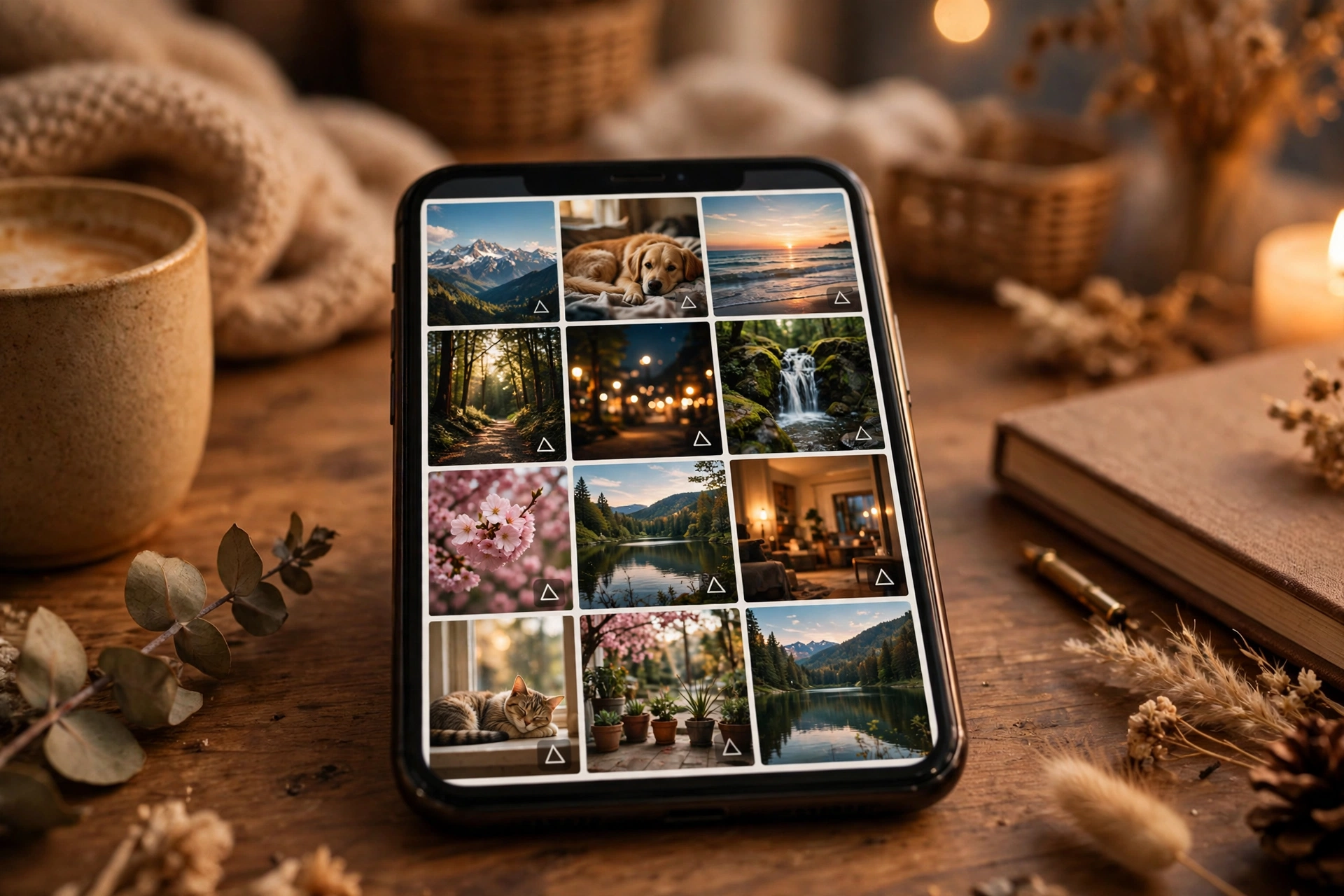
This confuses more people than anything else about saving Stories, so let’s be blunt: Memories is not your phone’s gallery. A snap saved to Memories lives inside Snapchat until you export it. If you lose your phone or your account, Memories goes with it. To get a real copy on your device:
- Open Memories — swipe up from the Camera screen, or tap the Memories icon just below the capture button.
- Press and hold the snap or Story you want.
- Tap Export, or Save to Camera Roll, depending on your version.
Your saved Stories show up in Memories newest first, so the thing you just saved is easy to spot. Every few months, export the ones you actually care about to your camera roll — that’s your backup. Treat Memories as a convenient drawer, not a vault.
How to Save a Public Snapchat Story From Someone Else
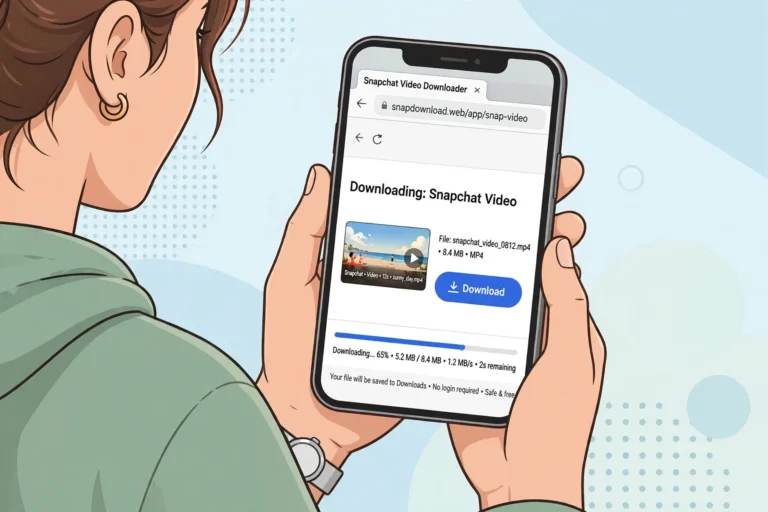
Here’s where Snapchat’s own buttons stop helping. There is no save button on somebody else’s Story inside the app — that’s deliberate, and it’s why screenshots and screen recordings of a friend’s Story usually notify them. But public Stories are a different case: creators who post publicly want their content seen, and a public share link can be saved with an online downloader, no login and no app required.
I tested this on snaptodown.com today (1 November 2026) with a real public Spotlight link, because I don’t publish a method I haven’t run myself. The extraction returned a genuine MP4 from Snapchat’s own CDN in 2.65 seconds — no watermark added, no sign-up, no daily cap found. The steps are the same for a public Story link:
- Open Snapchat, find the public Story, tap Share and choose Copy Link.
- Paste the link into the downloader box on snaptodown.com.
- Tap Download and save the MP4 that comes back.
On iPhone, a browser download lands in the Files app first — open Files, find the video, tap Share, then Save Video to move it to your camera roll. On Android it goes straight to your Downloads folder or Gallery. On a PC it lands in Downloads. For the full device-by-device walkthrough, see our guides on downloading a Story to your gallery and using a Snapchat story downloader.
Video: a genuine screen recording of the snaptodown.com tool made on 23 October 2026 (paste a public link, get the “DOWNLOAD READY” card) — reused here because the flow and output are unchanged, re-verified by today’s test.
What You Can’t Save — and Why No Tool Can Fix It
Honest limits matter more than features here, because the internet is full of tools promising the impossible. I ran the failure cases through the same extractor today so I could quote you the exact errors instead of guessing:
- Private or friends-only Stories: locked to approved followers. No downloader can reach them, and any tool claiming otherwise is lying. The extractor returns Snapchat’s own 404 for these.
- Expired Stories: once a Story passes the 24-hour mark, Snapchat deletes it from its servers. No tool can bring it back — waiting is the one thing that makes a Story genuinely unrecoverable.
- 1:1 snaps sent to you in Chat: these are meant to vanish. The only official option is “Save in Chat,” and only for photo snaps with no time limit or looping video snaps.
- Profile-only links: pasting a profile page (like snapchat.com/@username) instead of a direct Story link fails — the tool told me, verbatim, “Please paste a valid public Snapchat link (Spotlight, Story or video page).” You need the per-post share link, not the profile.
- Someone else’s snaps inside a Shared Story: you can only save the snaps you personally added. Other members’ contributions stay unsavable inside the app.

If a link fails, check the three usual suspects first: the Story already expired, the account went private, or you copied the profile link instead of the Story link. Our full troubleshooting guide covers all nine common failures — see Snapchat downloader not working.
Methods Compared: Which Way to Save a Story Wins?
| Method | Best for | Speed | Quality | Catch |
|---|---|---|---|---|
| In-app Save Story | Your own Story, whole reel | 4 taps | Original | Only your own content; lands in Memories, not gallery |
| Auto-save (Memories) | Never forgetting again | Set once | Original | Only works going forward; not a backup until exported |
| Online downloader (public links) | Public Stories & Spotlight from creators | ~3 seconds per link | Original CDN MP4, no watermark | Public links only; dead/private/expired links 404 |
| Screen recording | Last resort for anything on screen | Real-time | Lower, re-encoded | Usually notifies the poster; captures UI and notifications too |
| Screenshot | Single still frames only | Instant | Photo only, no video | Notifies the poster on Stories; useless for video |
The pattern is simple: for your own Stories, use Snapchat’s own save and auto-save. For public creator Stories, a link downloader beats screen recording on every axis — faster, original quality, no watermark, no notification trail from the app — as long as the link is public and still live. Screen recording is the fallback when nothing else fits, and you should assume the poster will know.
Is It OK to Save Someone Else’s Story?
Short version: saving a public Story for your own offline viewing is what these tools are built for; reposting someone else’s Story as your own is where you cross the line. The creator’s copyright still applies, and Snapchat’s own rules treat other people’s Stories as theirs, not yours. If it’s a friend’s Story, just ask them to send it — in my experience they’re usually happy you liked it. If it’s a public creator’s Story, keep it for personal use and don’t re-upload it. We go deeper on the legal side in is it legal to download Snapchat videos, and on the notification question in does Snapchat notify when you download a story.
Troubleshooting: When Saving Doesn’t Work
- “Save Story” is missing: update Snapchat — older versions use different menu wording, and the option sometimes sits under a different three-dot menu.
- Saved, but can’t find it: check Memories first, not your gallery. Export from Memories to get it into your camera roll.
- Downloader says the link is invalid: you probably pasted a profile link or a non-Snapchat URL. Copy the share link from the specific Story or Spotlight post instead.
- Downloader says 404 / dead / private / expired: that is Snapchat’s own answer, not the tool’s. The Story is gone or locked, and no tool can recover it.
- Video lands in Files, not Photos (iPhone): normal Safari behaviour — open Files, Share, Save Video.
For the official word on who can see your Story and how Story privacy works, see Snapchat’s own support page on Story visibility.
Frequently Asked Questions
How do I save Snapchat story videos before they disappear?
For your own Story: Profile → three dots next to My Story → Save Story, before the 24-hour expiry. That’s the simplest way to save Snapchat story clips you made yourself. For a public Story from a creator: copy the Story’s share link and paste it into an online downloader like snaptodown.com while the Story is still live. After expiry, neither route can recover it.
Where do saved Snapchat Stories go?
They go to Memories inside Snapchat. Swipe up from the Camera screen to find them, then export to your camera roll if you want a copy in your phone’s own gallery.
Can I save a friend’s Snapchat Story without them knowing?
Not inside the app — screenshots and screen recordings of a Story usually notify the poster. A public Story saved through a browser downloader doesn’t go through the app at all, but that only works for public links, never for friends-only Stories, and you should still have the creator’s permission before reusing anything.
Can I save a Snapchat Story after it has expired?
Only if you saved it or had auto-save on before it expired. Once it’s gone, Snapchat keeps no copy for you to download later — I verified the dead-link case today and the extractor returns Snapchat’s own 404.
How do I save every Story snap automatically?
Profile → gear icon → Settings → Memories → switch on auto-save for your Story snaps. It covers everything you post from that moment on, so switch it on today rather than after you lose something you care about.
Does saving a Story use up storage?
A whole saved Story is one video file, typically a few megabytes to a few tens of megabytes depending on length. If you auto-save daily, export and clear old ones every few months — or they’ll quietly eat your phone storage.
The Bottom Line
To save Snapchat story content without regret, do two things today: switch on auto-save so your own Stories can never vanish on you, and export the keepers to your camera roll so they live outside Snapchat too. And if there’s a public Story from a creator you want to keep, grab its share link and save it while it’s still live — the 24-hour clock is the only deadline that matters, because once it runs out, no tool on earth brings that Story back. Try it free on the snaptodown.com homepage: paste a public link, get the original HD MP4, no app, no sign-up, no watermark.