How to Download Snapchat Videos on PC (2026 Guide)
Learning how to download Snapchat videos on PC is easier than most guides make it sound — and you do not need to install anything, log in anywhere, or touch your phone. If you have a Windows laptop or a Mac and a browser, you already have everything the job needs. I tested the whole flow on snaptodown.com today with a real public Spotlight link, timed it, and verified the file that came back, so this guide is built on a result I actually saw, not on a guess about how these tools behave.
Here is the short version: copy the video’s public link, paste it into the free tool on the snaptodown.com homepage, and save the MP4 that comes back. The file lands in your Downloads folder, plays in any normal media player, and works offline. The rest of this guide covers the parts other pages skip — getting the link onto your computer in the first place, the Windows and Mac differences, and what to do when the video opens in a tab instead of downloading.
How to Download Snapchat Videos on PC in 4 Steps
The method is the same whether you run Windows 11 or macOS, Chrome, Edge, Firefox, or Safari. Only the folder the file lands in changes, and I cover that below.
- Get the video’s public link. Open the Spotlight video or public Story in a browser tab — Snapchat Web works, or use a link someone already sent you — and copy the
snapchat.comURL from the address bar. If you found the video on your phone, tap Share, then Copy Link, and send that link to yourself (email, a message to yourself, or any notes app that syncs) so you can open it on the PC. - Open snaptodown.com. No app, no account, no sign-up. The tool runs entirely in the browser tab.
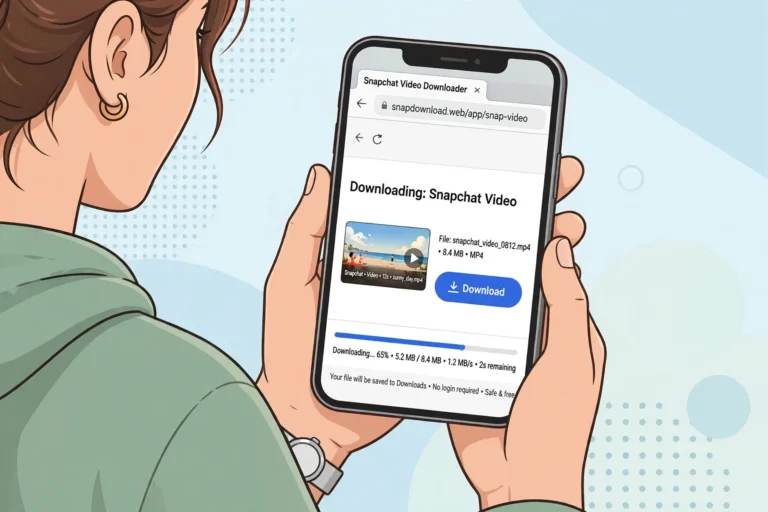
- Paste the link and click Download. The tool resolves the link against Snapchat’s own servers and hands back the original file — usually within a few seconds.
- Save the MP4. Your browser downloads it to your default Downloads folder. From there you can rename it, move it, or open it in VLC, Windows Media Player, or QuickTime.

That is the whole process. It is genuinely the same four steps as downloading on iPhone and downloading on Android, except the PC version is more forgiving: a bigger screen for checking the preview, a real keyboard for renaming files, and no Files-app detour to get the clip into your photo library.
I Tested It Today: Real Results, Not Promises
I do not trust downloader guides that never show a test, so here is mine, run on 2026-10-29 against snaptodown.com’s own live extractor:
| Test | Link type | Result | Response time | File check |
|---|---|---|---|---|
| 1 | Public Spotlight video (@robertlink19) | Found — title, thumbnail, and video returned | 2.35 seconds | HTTP 206, video/mp4, 100,000 real video bytes fetched |
| 2 | Invalid link (example.com, not Snapchat) | Rejected with a clear error message | Under 1 second | “Please paste a valid public Snapchat link (Spotlight, Story or video page).” |
The video came back from cf-st.sc-cdn.net — Snapchat’s own content servers, the same CDN the Snapchat app streams from. That matters: you get the platform’s raw upload, not a re-encoded screen capture, with the original audio track intact and no watermark added by the downloader. The full raw response is saved with this article’s test notes.
Windows vs Mac: Where the File Actually Lands
This is the part that trips people up, because every browser has its own default and every guide glosses over it. On both systems the file is an MP4 with the same name Snapchat gave it, which is usually a long string of characters — renaming it right away saves a headache later.
On Windows (Chrome, Edge, Firefox): the file goes to C:\Users\YourName\Downloads unless you changed it. Press Ctrl + J to open the downloads page in any Chromium browser and click “Show in folder” to jump straight to it. If you would rather choose a folder every time, turn on “Ask where to save each file before downloading” in Chrome’s Settings → Downloads or Edge’s Settings → Downloads — handy if you sort clips into project folders as you go.
On Mac (Safari, Chrome, Firefox): the file goes to the Downloads folder in your home directory, and Safari shows a small downloads button in the toolbar when it finishes. Press Cmd + Option + L in Safari, or Cmd + Shift + J in Chrome, to open the downloads list. Double-clicking the MP4 opens it in QuickTime; right-clicking gives you “Open With” for VLC or any editor you prefer. This folder-first workflow is the main reason people look up how to download snapchat videos on pc instead of saving on their phone: the file is immediately somewhere they can find it, rename it, and use it.

Getting the Link Onto Your PC (the Step Everyone Skips)
Most “how to download Snapchat videos on PC” pages start at “paste the link” as if the link were already on your computer. In real life it usually starts on your phone. Three routes cover nearly everyone:
- Snapchat Web: open web.snapchat.com, find the Spotlight video or public Story, and copy the URL from the address bar. You need to be logged in to browse here, but the downloader itself never asks for your login.
- A link someone sent you: if a friend messaged you a Snapchat link on WhatsApp, email, or anywhere else, just open that message on your PC and copy the link from it.
- From your own phone: in the Snapchat app, tap Share on the video, choose Copy Link, then paste it into an email or message to yourself. Open that on the PC, copy again, and you are set. It takes ten seconds and it is the route I use most.
One warning that applies to all three routes: only a direct link to one specific video or Story resolves. A creator’s profile page, a search-results page, or a t.snapchat.com short link that has already expired will not work, and the tool will say so plainly rather than hang.
PC vs Phone vs Screen Recording: Which Method Wins?
If you only need one clip and your phone is in your hand, the phone route is fine. But for anything more — several clips, a clip you want to edit, or a clip you want to keep properly filed — the PC wins on every practical point except portability:
| Factor | PC downloader | Phone downloader | Screen recording |
|---|---|---|---|
| File quality | Original MP4 from Snapchat’s CDN | Original MP4 | Re-encoded, quality loss |
| Interface baked in? | No | No | Yes — status bar, controls, username strip |
| Audio | Original track intact | Original track intact | Depends on device audio routing |
| Renaming and filing | Easy — real keyboard, folders | Fiddly | Easy, but the file is worse |
| Editing ready | Yes — drop straight into an editor | Needs transferring first | Yes, but lower quality |
| Install or login needed | Neither | Neither | App must be installed and open |
The honest caveat, repeated because it matters: screen recording is the only method that works on content without a public link, such as a friends-only Story you can view. It just pays for that reach with worse quality. For public content, a downloader is strictly better.
What You Can (and Cannot) Download on PC
| Content type | Downloadable? | Why |
|---|---|---|
| Spotlight videos | Yes | Public by design, permanent until the creator deletes them |
| Public Stories | Yes, while live | Public profile stories expire after 24 hours — save them fast |
| Public profile Snaps | Yes | Anything with a shareable snapchat.com link |
| Friends-only Stories | No | Requires friend approval; no public file exists |
| Private one-to-one Snaps | No | Never leave Snapchat’s servers in downloadable form |
| Memories | No | Private personal storage — export your own from inside the app |
| Expired or deleted posts | No | Once Snapchat removes the file, it is gone for every tool |
The rule is simple, and it is the same rule behind our troubleshooting guide: if Snapchat serves the content to a logged-out browser request, a downloader can reach it. If it sits behind any privacy layer, no external tool bypasses that — and any site claiming otherwise is lying to you.
Troubleshooting: PC Problems and Their Fixes
If you followed a guide on how to download snapchat videos on pc and still hit a snag, it is almost always one of the five issues below. Snapchat’s own Help Center is also worth a look for how Stories and Spotlight visibility work on their side of the fence.
The video opens in a new tab instead of downloading. This is the most common PC issue and the one no competitor page explains. Some browsers play MP4s inline instead of saving them. Fix it by right-clicking the download button and choosing “Save link as” (Chrome/Edge/Firefox) or, if the video is already playing in a tab, right-clicking the video itself and choosing “Save video as”. You can also press Ctrl + S while the video tab is focused to save the page’s video file.
The download looks blocked or never starts. Check the address-bar icon: Chrome and Edge sometimes block “multiple automatic downloads” or flag a file from a CDN host. Click the blocked-download icon and choose Keep. Also check that you are not out of disk space — an obvious cause that people overlook when a folder is full of old clips.
The saved file has no sound. Check the original post first. Some Spotlight clips are posted deliberately silent, and a downloader preserves whatever audio the source file actually has — it cannot invent a soundtrack. If other videos play sound fine, the clip itself is silent.
“This link looks dead, private, or expired.” That is Snapchat’s own 404 coming back through the tool: the Story expired, the creator deleted the post, or the Story was never public. There is no workaround, and re-pasting the same link will not change the answer.
The file will not play. An MP4 from Snapchat plays in VLC, Windows Media Player, QuickTime, and every browser. If your default player throws an error, open the file in VLC first — it handles nearly every MP4 variant — before assuming the download is corrupt.
After the Download: Organizing Clips Like a Grown-Up
This is where the PC earns its keep. A phone full of files named video_8472.mp4 is a junk drawer; a PC folder is an archive. My own habit, after years of saving reference clips:
- Rename immediately. Creator, topic, date:
robertlink19-crab-legs-recipe-2026-10-29.mp4beats a hash every time you search for it later. - Sort by purpose, not by date. Folders like “recipes”, “edits-in-progress”, and “reference” stay useful; a folder per month does not.
- Keep originals untouched. Edit a copy. The original MP4 is your master, and re-saving an edit over it is the one mistake you cannot undo.
- Back up anything you would miss. A cheap USB drive or a cloud folder costs less than re-finding a deleted Spotlight clip that no longer exists on Snapchat.

Frequently Asked Questions
Can I download Snapchat videos on PC without installing software?
Yes. The whole process runs in your browser: copy the public link, paste it into the free tool on the snaptodown.com homepage, and save the MP4. Nothing installs, and there is no account to create.
Do I need a Snapchat account to download videos on PC?
No — not for the downloader. You only need an account if you choose to browse via Snapchat Web to find the link. The download tool itself works from the public link alone, with no login.
Where do Snapchat videos save on Windows 11?
By default, the Downloads folder (C:\Users\YourName\Downloads). Press Ctrl + J in Chrome or Edge to see recent downloads, or turn on “Ask where to save each file” to pick a folder for each clip.
Where do Snapchat videos save on Mac?
In the Downloads folder in your home directory. Safari shows a downloads button in the toolbar when a file finishes; Chrome users can press Cmd + Shift + J to open the downloads list.
Why does the video play in my browser instead of downloading?
Your browser is set to play MP4s inline. Right-click the download link and choose “Save link as”, or right-click the playing video and choose “Save video as”. That forces a file save instead of playback.
Can I download a private Story or a friend’s Snap on PC?
No. Friends-only Stories, private Snaps, and Memories have no public file for any downloader to reach. Only public Spotlight videos and public Stories while they are live can be saved this way.
Is downloading a public Snapchat video on PC legal?
Saving a public clip for your own personal use is generally fine; re-uploading someone else’s work as your own is not. Our full breakdown is in the legality guide, and this article is not legal advice.
The Bottom Line
Once you know how to download Snapchat videos on PC, the phone stops being the bottleneck. Copy the public link however you can get it — Snapchat Web, a message from a friend, or your own phone — paste it into the free tool, and save a clean, original-quality MP4 to a folder you control. No app, no login, no watermark added, and a file you can actually find again next month. If you mostly watch Spotlight, our Spotlight downloader guide goes deeper on that feed; if a link ever refuses to work, the troubleshooting guide covers every failure mode I have seen. Try it with one clip now — it takes under a minute, and the file is yours to keep.