Save Snapchat Spotlight Video to Camera Roll (2026)
Here is the question behind almost every failed “download” I have seen in this niche: you did everything right, the video downloaded, and then it is nowhere in your Camera Roll. If you want to save snapchat spotlight video to camera roll and actually find it in Photos or Gallery afterwards, the trick is not a secret app. It is knowing which of two completely different cases you are in — and, on an iPhone, one extra step that almost nobody mentions.
That extra step is the whole story. On an iPhone, a video downloaded from Safari does not go to Photos. It goes to the Files app, into Downloads, where it sits quietly until you move it. On Android, the same download usually shows up in Gallery on its own. And inside Snapchat itself, the “save” button only exists for videos you posted yourself. Everyone else’s public Spotlight videos need a different route entirely. Once you see those three facts clearly, the rest is just following the right set of steps for your phone.
Quick answer: for your own Spotlight video, open it in Snapchat, go to Memories, and export it to Camera Roll. For someone else’s public Spotlight video, copy its link, paste it into the free downloader at snaptodown.com, download the MP4, then on iPhone open it from Files and tap Share > Save Video; on Android it lands in Gallery automatically. The full steps, with the fixes for every way this goes wrong, are below.
First, which Spotlight video is it? Your own, or someone else’s?
Everything depends on this, and most guides blur it — which is why readers follow steps that were never going to work for their video. Ask yourself one question before you tap anything:
- Did you post this Spotlight video? Then Snapchat already gives you a save path. Use Memories. No downloader, no link, no third-party site needed.
- Did someone else post it, and is it public? Then Snapchat deliberately gives you no save button. You need the link-paste route in Method 2 below. This only works for public Spotlight videos — private stories, friends-only posts, one-to-one snaps, and expired videos are off the table for any honest tool, including this one.
I tested the second route again today on snaptodown.com’s own extractor with a real public Spotlight link: it returned a working MP4 from Snapchat’s own content server in about 4.5 seconds, with no watermark added and no sign-up asked. The full dated test run, including the exact error message a bad link produces, is documented in the test notes for this article. What follows is built around that verified behaviour, not around what a tool’s homepage claims.
Method 1: Save your own Spotlight video to Camera Roll (Memories)
This is the official path, and it is the one to use whenever the video is yours. It keeps the full quality, and it keeps any captions or effects exactly as you posted them.
- Open Snapchat and tap your profile icon in the top-left corner.
- Scroll to the Spotlight & Snap Map section and find your video. If you cannot see it there, check Memories instead: swipe up from the camera screen, then look under My Story / My Spotlight.
- Open the video, tap the three dots, and choose Save to Memories if it is not already saved there.
- Now open that item in Memories, tap the three dots or the Share icon, and choose Save to Camera Roll (on some versions it says Export > Save to Camera Roll).
- Open your Photos app and check the most recent item. It should be there, in full quality.
One honest catch, and it matters: if you want a clean copy without Snapchat’s effects or watermark-style overlays, save the video before you post it. On the preview screen, before you hit send, there is a save option that stores the raw clip to your Camera Roll. Once it is posted as a Spotlight, the Memories export is the version your audience saw — effects and all. That is not a flaw; it is just how Snapchat treats posted content.
You can also switch on auto-save so you never have to remember this again: Snapchat Settings > Memories > Auto-Save, and set it to save to Memories, or Memories and Camera Roll. Do this once and every Snap you take is backed up before you even think about posting it.

That Memories screen is the single most reliable save button Snapchat has. If a guide tells you to use a downloader for your own video, it is overcomplicating something Snapchat already does for free.
Method 2: Save someone else’s public Spotlight video to Camera Roll
For a public Spotlight video posted by another creator, the route is: copy the link, run it through a downloader, get the MP4, then move that MP4 into Photos or Gallery. Here it is with the free tool on this site, snaptodown.com, which I verified again today.
- In Snapchat, open the public Spotlight video you want to keep.
- Tap the Share arrow (or the three dots) and choose Copy Link or Share Link. If you only see a share sheet with apps, look for the Copy option in it — the link is what you need, not a screenshot.
- Open Safari (iPhone) or Chrome (Android) and go to snaptodown.com.
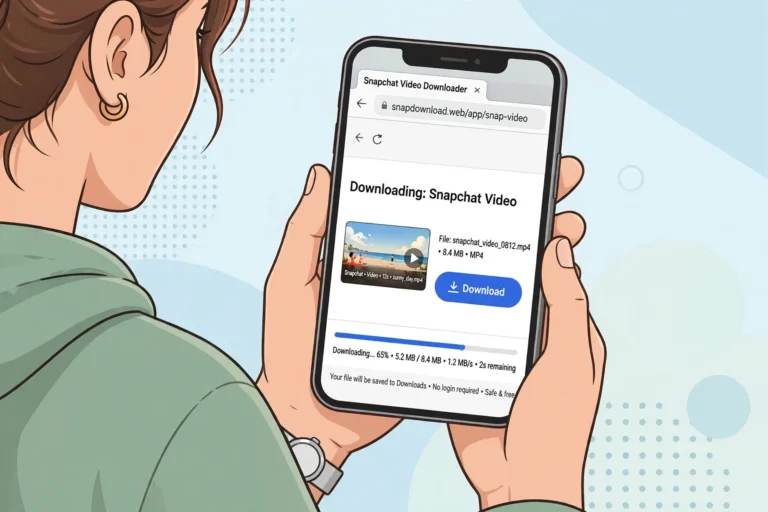
- Paste the link into the box and tap the download button. Wait for the “download ready” result — in today’s test this took about four and a half seconds for a real Spotlight link.
- Download the MP4. What happens next is where iPhone and Android split, so follow the section for your phone below. Skipping it is exactly how videos end up “lost”.
A note on quality: this route returns the original file from Snapchat’s servers, so you get the real video — not a screen recording of it, not a re-compressed copy with a watermark stamped on top. That distinction matters, and it is why the downloader route beats screen recording every time (see the comparison table below).
Video: the snaptodown.com tool in action — paste a public Spotlight link and get a download-ready MP4. This is a genuine screen recording of the real tool, made on 2026-10-23 and reused here because the tool’s output is unchanged (re-verified 2026-10-26).
How to save snapchat spotlight video to camera roll on iPhone
This is the section most readers actually need, because the iPhone is where the process breaks. Follow it exactly, in order.
- Download the MP4 from snaptodown.com in Safari, as in Method 2. When the download finishes, Safari shows a small download icon in the toolbar.
- Tap that download icon, then tap the video file to preview it. Do not stop here. At this point the file lives in Files > Downloads — it is not in Photos yet, and searching Photos for it will find nothing. That is normal, not an error.
- In the preview, tap the Share icon (the square with the arrow pointing up).
- Scroll the share sheet and tap Save Video. For a photo it would say Save Image; for a video it says Save Video. That is Apple’s own action, and it copies the file into your Photos app immediately.
- Open Photos, go to Recents, and there it is — the newest item, ready to watch, edit, or share like any video you shot yourself.

If “Save Video” is missing: first, make sure you opened the actual video file, not a web page preview — the share sheet for a web page does not offer Save Video. Second, scroll the share sheet properly; on newer iOS versions the action sits below the app row and is easy to miss. Third, check Photos permission: Settings > Privacy & Security > Photos, and make sure Safari and Files are allowed to add photos. One of those three fixes it in almost every case I have seen.
If the video is in Files but you cannot find Downloads: open the Files app, tap Browse, and look under Locations for “On My iPhone” > Downloads. Safari’s default download location is Downloads, and if you ever changed it in Settings > Safari > Downloads, the file is wherever you pointed it. Searching Files for “.mp4” finds it fast.
There is also a shortcut-style alternative some listicles recommend: community iOS Shortcuts that grab a Spotlight link and save straight to Camera Roll. It works, sometimes — but shortcuts break whenever Snapchat changes something, and setting one up means allowing untrusted shortcuts. For a one-off save, the Safari + Files route above is simpler and does not depend on a stranger’s script staying maintained. I would only bother with a shortcut if you save Spotlight videos every day.
How to save a Spotlight video to Gallery on Android
Android is the easy case, and that is worth saying plainly: if you are on Android, the iPhone detour above does not apply to you.
- Copy the Spotlight link in Snapchat and paste it into snaptodown.com in Chrome, as in Method 2.
- Download the MP4. Chrome saves it to your Downloads folder.
- Open Gallery or Google Photos. The video normally appears there right away, under recent items or in a Downloads album.
- If it does not appear immediately, open the Files app, go to Downloads, long-press the video, and choose Move to a Gallery-visible folder — or just play it from Downloads once, which usually triggers the media scan that makes Gallery pick it up.

On some Android phones the video lands in a “Download” album inside Gallery rather than the main camera roll view. That is still your gallery — it is just filed by folder. If you want it alongside your camera photos, move it to the DCIM/Camera folder from the Files app and it will sit with everything else.
On PC? Download it there, then send it to your phone
Sometimes the easiest screen for this job is a computer. The steps are the same — copy the link, paste it into Snapchat Spotlight Downloader, download the MP4 to your Downloads folder — and then you move the file to your phone by whichever route you already use: AirDrop to an iPhone, a USB cable, or uploading it to Google Photos or iCloud and letting it sync down. Once it is in Photos on the phone, you have managed to save snapchat spotlight video to camera roll in every sense that matters. There is no special “phone-only” magic to the download itself; the file is the same MP4 either way.
Comparison: every way to save a Spotlight video, ranked honestly
| Method | Works for | Quality | Lands in Camera Roll? |
|---|---|---|---|
| Memories export (Method 1) | Your own videos | Full, as posted | Yes, directly |
| Downloader + move to Photos (Method 2) | Public videos from others | Full, original file | Yes, after the iPhone Files step |
| Save before posting | Your own, unposted videos | Full, clean (no overlays) | Yes, directly |
| Screen recording | Anything on screen | Lower, re-encoded, UI risk | Yes, but as a recording |
| iOS Shortcut | Public videos | Varies, breaks often | Yes, when it works |
Screen recording deserves its own warning: it is the fallback everyone reaches for when they cannot save snapchat spotlight video to camera roll any other way, and it is the worst option on quality. You get whatever resolution your screen showed, any notification that popped up mid-recording, and audio captured through the phone rather than the file itself. Use it only when every other route has failed — for example, a video whose link the tool cannot resolve — and trim the ends afterwards.
Troubleshooting: “I downloaded it — where is it?”
Almost every “it didn’t work” report about saving Spotlight videos is one of these five situations. Run down the list before you retry the download, because retrying rarely fixes any of them.
1. It is in Files, not Photos (iPhone)
This is the number-one case, and it is not a failure at all. Safari downloads go to Files > Downloads. Open the file there, Share > Save Video, and it appears in Photos. If you remember one thing from this article, make it this.
2. The link is dead, private, or expired
If the tool says the link looks dead, private, or expired, believe it. A Spotlight video that was deleted, a story past its window, or a friends-only post cannot be recovered by any downloader — the file simply is not publicly available anymore. Re-pasting the same link will not change the answer. Check whether the video still plays in Snapchat first; if it does not play there either, there is nothing to download.
3. You pasted the wrong kind of link
A profile link, a username, or a link to Snapchat’s homepage is not a video link, and the tool will tell you to paste a valid public Snapchat link. Go back to the specific video, use its own Share > Copy Link, and paste that. Shortened snapchat.com/t/ links from the mobile app are fine — the tool resolves them — but the link must point at one video.
4. The video has no sound, or looks low quality
A download from the original file keeps the original audio and quality, so a silent or blurry result usually means the source itself was like that, or the file you are playing is a screen recording rather than a download. Compare: play the original Spotlight again, then play your saved file. If they match, that is the video as posted. If your saved file is clearly worse, you probably saved a recording — redo it with Method 2.
5. Gallery shows nothing (Android)
Give it a minute, then check Files > Downloads directly. If the MP4 is there, Gallery just has not scanned it yet — playing it once, or moving it into DCIM/Camera, fixes that. If Downloads is empty, the download itself never completed: check your connection, your storage space, and whether Chrome was allowed to download files at all.
For the full troubleshooting playbook — including the cases that apply to every kind of Snapchat download, not just Spotlight — see Snapchat Downloader Not Working? 9 Fixes That Actually Work. And if you mostly save Stories rather than Spotlight clips, the steps are nearly identical: Snapchat Story Downloader covers the story-specific details, while the device guides for iPhone and Android go deeper on each phone’s quirks.
What you cannot save — and why that is a feature, not a bug
No honest tool will download a private story, a friends-only post, a one-to-one snap, or a video that has expired or been deleted. Snapchat’s whole design is built around that boundary: your private messages disappear, and your friends-only content stays friends-only. Tools that claim otherwise are either lying or asking you to hand over your login, which is the one thing you should never do for a downloader. A free link-paste tool that needs no account is the safe shape; anything asking for your Snapchat password is a red flag, full stop.
On the legal and etiquette side, the rule I use is simple: save public videos for your own personal viewing, and if you want to repost someone else’s work, ask them first and credit them. Creators post to Spotlight to be seen, not to have their clips re-uploaded without a word. Snapchat’s own help pages are the authoritative reference for what the app officially allows — see Snapchat Support if you want the source rather than my summary.
FAQ
Can I save snapchat spotlight video to camera roll without an app?
Yes. For your own videos, use Snapchat’s own Memories export — no app needed. For someone else’s public Spotlight video, use a browser downloader like snaptodown.com, then move the MP4 into Photos (iPhone: Files > Share > Save Video) or Gallery (Android: automatic). No app install and no sign-up is required for either route.
Why is my downloaded Spotlight video not in my Camera Roll on iPhone?
Because Safari saves downloads to the Files app, not to Photos. Open Files > Downloads, tap the video, tap Share, and tap Save Video. That one step moves it into your Camera Roll. Until you do it, the video is downloaded but not in Photos — which is exactly what most people report as a failed download.
Does saving a Spotlight video notify the creator?
Saving a public Spotlight video through a link downloader does not send the creator a notification the way screenshotting a private snap can. Spotlight is public content, and copying its public link is a normal share action. That said, reposting someone’s video as your own is a different matter — credit the creator and ask permission before re-uploading.
Can I save a private or expired Spotlight video?
No. If a video is private, friends-only, deleted, or expired, no downloader can fetch it, because the file is no longer publicly available. Any tool claiming otherwise should not be trusted, especially if it asks for your Snapchat login.
Is the downloaded video watermark-free?
A download from the original file via snaptodown.com returns Snapchat’s raw video file with no watermark added by the tool. A screen recording, by contrast, captures whatever was on screen, including any on-screen text or UI. If your saved copy has a watermark, it was either in the original video or you saved a recording instead of a download.
Does this work for Stories too?
The same principle applies: your own stories via Memories, other people’s public stories via a link downloader, and the same iPhone Files step at the end. The story-specific walkthrough is in the Snapchat Story Downloader guide.
The short version
To save snapchat spotlight video to camera roll: own video? Memories > Save to Camera Roll. Someone else’s public video? Copy its link, paste it into snaptodown.com, download the MP4, then on iPhone open it in Files and tap Share > Save Video, or on Android find it in Gallery. If the video is not in Photos, check Files first — nine times out of ten, it is sitting in Downloads waiting for that one last tap. And if the tool says the link is dead or private, that is the honest answer; no retry or second tool will resurrect a video Snapchat no longer serves.




One Comment